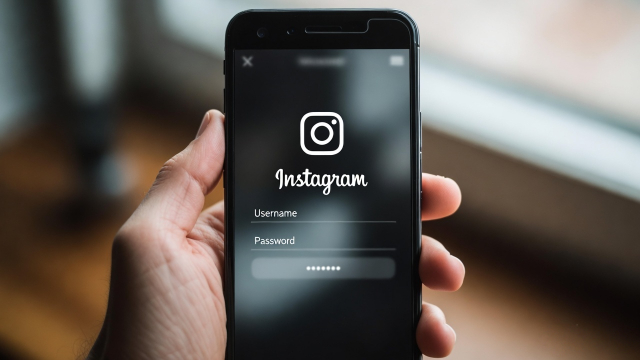
It’s quite common for people to stay logged into their Instagram accounts for months without needing to enter their password again. Because of this, many users eventually forget the password they set earlier. The issue usually appears when you try to sign in on a new device, update the app, or change security settings.
If you are already logged into Instagram and want to find your password, there is something important to know: Instagram does not display your password inside the app. This restriction exists to protect user accounts and prevent unauthorized access.
However, in many cases the password might still be stored on your device or browser if you allowed it to be saved earlier. By checking your device’s password storage or browser settings, you may be able to view the saved credentials.
Below are some reliable methods that may help you locate your saved Instagram password.
Look for the Password in Your Device’s Password Storage
Most smartphones include built-in password managers that automatically store login details for apps and websites. If you enabled this feature earlier, your Instagram login information may already be saved there.
Steps for Android Users
- Open Settings on your Android phone.
- Scroll down and select Google.
- Tap Manage your Google Account.
- Go to the Security section.
- Find and open Password Manager.
- Search for Instagram in the list of saved accounts.
- Verify your identity using your device lock (PIN, fingerprint, or face unlock).
After verification, the saved password can be revealed.
Steps for iPhone Users
- Open Settings on your iPhone.
- Tap Passwords.
- Confirm your identity using Face ID, Touch ID, or your passcode.
- Use the search option to find Instagram.
If your login details were saved previously, your password will appear in this section.
Check Your Browser’s Saved Passwords
Another possibility is that your browser stored the login information when you signed in to Instagram through its website. Browsers like Chrome, Safari, or Edge often save passwords when the user allows it.
Example Using Google Chrome
- Launch Google Chrome on your phone or computer.
- Click the menu icon (three dots) in the corner.
- Open Settings.
- Select Autofill and Passwords.
- Enter Password Manager.
- Search for Instagram or instagram.com.
- Authenticate using your device password to view the saved login details.
This option works only if the browser stored the password during a previous login.
Reset the Password If It Isn’t Saved Anywhere
If the password cannot be found in your device or browser, the best approach is to reset it using Instagram’s official recovery process.
- Go to the Instagram login screen.
- Select Forgot password?
- Enter your username, email address, or phone number linked to the account.
- Follow the instructions sent to your registered email or mobile number.
- Create a new password and log in again.
After creating a new password, you can choose to save it in your device’s password manager for easier access in the future.
Simple Practices to Keep Your Instagram Account Secure
Managing passwords carefully can help avoid login issues and improve account safety. Here are a few helpful tips:
- Choose a strong password that is difficult to guess.
- Avoid using the same password across multiple platforms.
- Turn on two-factor authentication for additional account protection.
- Save passwords only on trusted personal devices.
Conclusion
Instagram does not provide a feature to directly view your password from within the app while you are logged in. This is part of the platform’s security design.
However, if your credentials were previously saved on your phone or browser, you may still be able to access them through the device’s password manager. If no saved password is available, resetting it through Instagram’s official recovery option is the safest and most reliable solution.
Using a trusted password manager and enabling security features can help ensure you always have secure access to your account when needed.