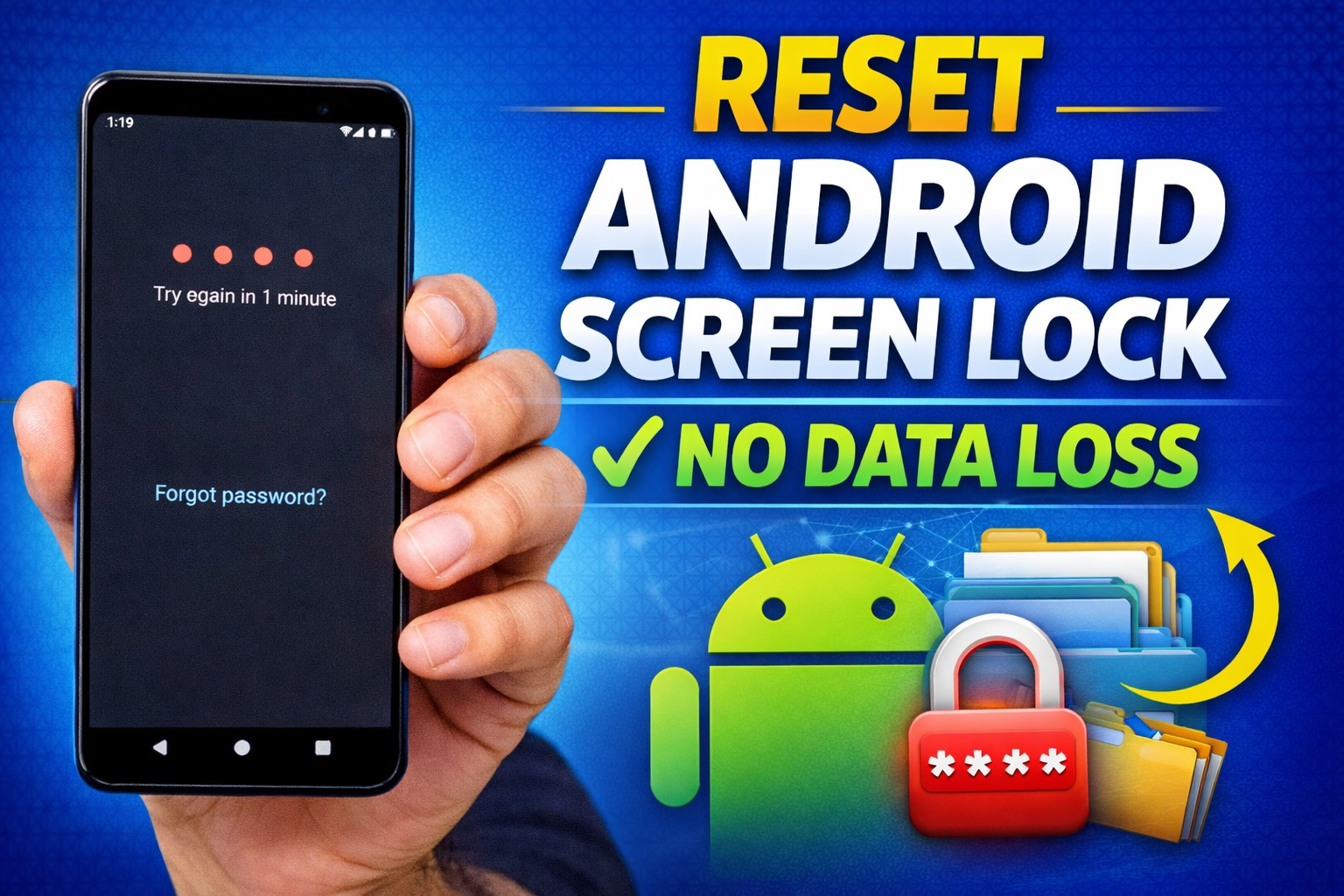
Forgetting the lock screen password of your Android phone can feel stressful, especially when important photos, documents, and apps are stored on the device. Fortunately, there are several safe ways to regain access without deleting your data.
This guide explains practical and legitimate methods that may help you unlock your Android device while keeping your files intact. The exact steps can vary depending on the Android version and the phone manufacturer, but the approaches below are commonly used across many devices.
🔐 Mobile Pattern Lock Generator
Why Screen Locks Matter on Android Devices
Lock screens are designed to protect personal information stored on smartphones. They prevent unauthorized access if the device is lost, stolen, or used by someone else.
Android phones typically offer multiple types of lock screen security. Each option balances convenience and protection in different ways.
Common Screen Lock Options
Most Android devices support the following security methods:
- PIN: A numeric code used to unlock the device.
- Pattern lock: A drawn pattern connecting dots on the screen.
- Password: A combination of letters, numbers, and symbols for stronger security.
- Fingerprint authentication: Unlocking the device using a registered fingerprint.
- Face recognition: Accessing the phone through facial verification.
While biometric options like fingerprint or face unlock provide quick access, PINs and passwords are generally considered stronger for security.
Situations When You May Need to Reset the Lock Screen
There are several legitimate reasons someone might need to reset their device’s lock screen credentials. Some of the most common include:
- Forgetting the previously set password or pattern
- Changing security settings for better protection
- Preparing the device for a new user or family member
- Suspecting unauthorized access and wanting to update the lock method
In these situations, the goal is to restore access without affecting stored data.
How Data Protection Works During Password Recovery
Android includes built-in security systems designed to protect user data. These safeguards ensure that personal information remains protected during recovery attempts.
However, certain unlocking methods may still require identity verification through linked accounts or security settings. It is always recommended to use official tools provided by Google or the device manufacturer.
Methods to Reset an Android Screen Lock Without Data Loss
Depending on your device and account setup, you may be able to regain access using one of the following methods.
1. Recover Access Through Your Google Account
Many Android devices are linked to a Google account during setup. In some cases, this account can help restore access.
General steps:
- Open your phone’s Settings menu if the device allows limited access.
- Navigate to Security or Lock Screen settings.
- Select the option related to password reset or forgot password.
- Verify your Google account details.
- Create a new screen lock.
This method works on many Android devices that support Google account verification.
2. Use Google’s Device Management Tools
Google provides an official tool that helps users locate and manage their Android devices remotely.
If your phone is connected to the internet and linked to your Google account, you may be able to manage the device remotely and restore access after verifying your identity.
This service can also help you locate or secure your phone if it is misplaced.
3. Restart the Phone in Safe Mode
Safe Mode temporarily disables third-party apps. If the lock screen is created by a third-party security application, Safe Mode may allow you to access the device and remove or change that lock.
The basic process usually involves:
- Holding the power button
- Selecting the Safe Mode option
- Accessing settings once the phone restarts
Keep in mind that Safe Mode will not bypass built-in Android security locks.
4. Manufacturer Tools for Device Recovery
Some smartphone brands provide their own remote device management services.
For example, certain manufacturers offer online tools that allow users to manage their devices after logging into their registered account. Through these services, users may be able to unlock the phone or reset security settings while preserving stored data.
The availability of these features depends on the device model and whether the account was set up previously.
Important Tips to Avoid Future Lockouts
To reduce the chances of getting locked out again, consider following these simple precautions:
- Remember your primary unlock method and store it securely.
- Enable biometric options like fingerprint or face unlock for convenience.
- Keep your Google account active on the device for recovery options.
- Back up important data regularly using cloud services or external storage.
Regular backups ensure that your files remain safe even if you need to reset the device in the future.
Final Thoughts
Losing access to your Android phone due to a forgotten password can be inconvenient, but it doesn’t always mean your data is lost. By using official recovery tools, linked accounts, or manufacturer services, many users can regain access without deleting their files.
The most important step is to rely on legitimate recovery methods and keep your accounts and backups updated. Doing so helps protect your information while ensuring you can quickly recover access if needed.
Frequently Asked Questions
Can I unlock my Android phone without deleting data?
In some cases, yes. Official recovery tools linked to your Google account or device manufacturer may allow you to reset the screen lock while keeping existing data.
What should I do if I forget my phone password?
Try available recovery options such as account verification or official device management tools. If those methods do not work, contacting the device manufacturer’s support service may help.
Is it safe to use third-party unlocking tools?
It is generally safer to rely on official solutions from Google or your device manufacturer. Third-party tools may not always be reliable or secure.
Does Safe Mode remove the lock screen?
Safe Mode only disables third-party apps temporarily. It may help if the lock screen was created by an app, but it will not bypass built-in Android security.
If you want, I can also create an SEO package for this article including:
- Meta title
- Meta description
- SEO keywords
- Featured snippet paragraph
This can help the article rank better on Google.